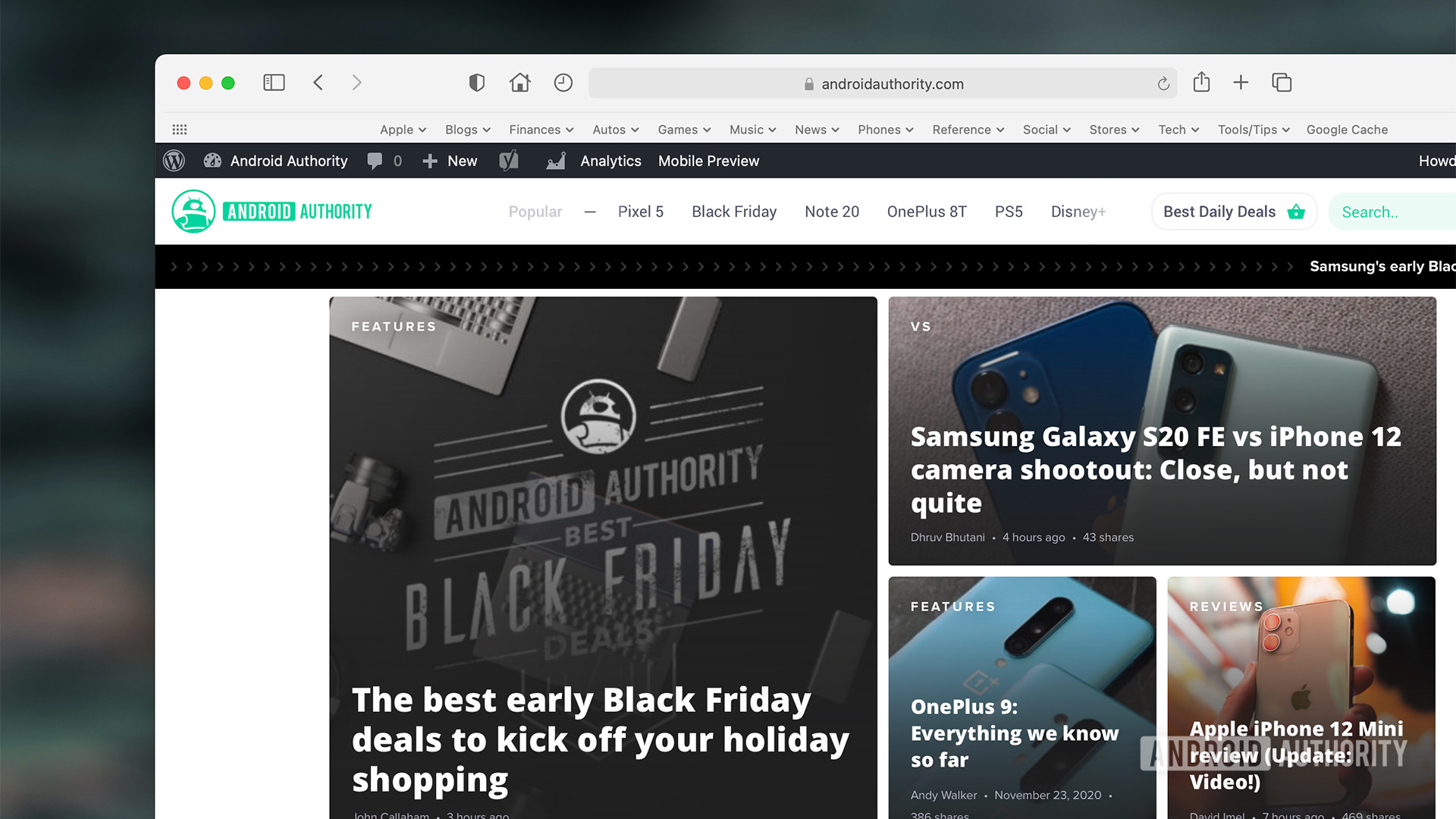
Websites are basically like clingy exes. You visit once to buy a pair of wool socks, and suddenly, that brand is following you across every corner of the internet via digital breadcrumbs. These breadcrumbs, better known as cookies, are small files stored on your Mac that help Safari remember who you are. Honestly, most of the time they’re helpful. They keep you logged into your email and remember what was in your shopping cart before your Wi-Fi cut out. But they also bloat your system. If Safari feels sluggish or a website refuses to load properly, it’s usually because of a corrupted cookie.
Knowing how to clear cookies on Mac Safari isn't just about privacy. It’s about maintenance.
Think of it like cleaning out a junk drawer. If you never touch it, eventually you can’t find the one thing you actually need. Most people think they have to nukes their entire browsing history just to fix a single glitchy site, but that’s overkill. Apple actually gives you a surprising amount of granular control, if you know where to dig in the Settings menu.
The Quick Way to Reset Your Digital Footprint
Let's get straight to the point. If you want to wipe everything—and I mean everything—the process is fast. Open Safari. In the top menu bar, click on Safari, then Clear History. A little box pops up asking for a timeframe. You can choose the last hour, today, today and yesterday, or all history.
When you hit that button, Safari deletes the history, the cache, and the cookies all at once. It’s the "scorched earth" policy. Just keep in mind that this syncs across your iCloud account. If you clear it on your MacBook, you’re getting logged out of those sites on your iPhone and iPad too. It’s a bit of a pain if you don’t use a password manager.
Wait.
There is a more surgical way to do this. Maybe you just want to kick Amazon off your trail but keep your banking session active. To do that, go to Safari > Settings (or use the shortcut Cmd + ,). Click the Privacy tab. You’ll see a button that says Manage Website Data. This is where the real work happens.
Why Your Mac Gets Clogged Up
Every site you visit isn't just dropping one cookie. They’re dropping dozens. There are "first-party" cookies, which the site itself uses to function. Then there are "third-party" cookies, usually from advertisers or analytics firms like Google Analytics or Meta. These are the ones that track you from site to site.
Over time, these files can conflict with each other. Developers update their websites, and if your Safari is still trying to use an old cookie to "talk" to a new version of a site, the whole thing crashes. You get those "400 Bad Request" errors. It’s annoying.
Actually, the Manage Website Data list is a bit of an eye-opener. You’ll see names of companies you’ve never even heard of. These are the ad tech giants living rent-free in your browser. Selecting a specific site from this list and clicking Remove allows you to be precise. It's much better than a total wipe.
Privacy Settings You Should Actually Change
Apple talks a big game about privacy. In the same Privacy tab where you manage cookies, you'll see a checkbox for Prevent cross-site tracking. Keep that on. It uses Intelligent Tracking Prevention (ITP), which is a machine-learning model Apple built to identify and block trackers that try to follow you.
Some people suggest checking "Block all cookies."
Don't do that.
Seriously. If you block all cookies, the internet basically stops working. You won't be able to log into anything. You won't be able to pay for things. Most websites will just loop you back to the login page over and over. It's a miserable experience. If you're that worried about privacy, use a Private Browsing window (Shift + Cmd + N). Safari automatically tosses those cookies the second you close the window.
Troubleshooting the "Won't Stay Deleted" Problem
Sometimes you clear your cookies, and they just... come back. It feels like a glitch. Usually, this happens because of iCloud syncing. If you have multiple Apple devices, one device might be "pushing" the old data back to the others.
If you're dealing with a persistent tracking cookie that won't die:
- Turn off Safari in your iCloud settings on all your devices.
- Clear the cookies on your Mac.
- Restart the Mac.
- Turn iCloud Safari syncing back on.
It’s a bit of a "turn it off and back on again" solution, but it works when the standard method fails.
Another weird quirk? Handoff. If you have a site open on your iPhone, your Mac might try to keep some data "warm" so you can pick up where you left off. Close your tabs on all devices before you do a deep clean.
Clearing the Cache vs. Clearing Cookies
We often use these terms interchangeably, but they are different. A cookie is a tiny text file with your ID on it. The cache is a collection of images, stylesheets, and scripts. If a website looks "broken"—like the layout is all messed up—it's a cache issue. If a website won't let you log in or keeps forgetting your preferences, it's a cookie issue.
To clear the cache without touching your cookies, you have to enable the "hidden" menu.
Go to Safari > Settings > Advanced.
At the very bottom, check the box that says Show features for web developers (or "Show Develop menu" in older versions).
Now, a new "Develop" menu item appears in your top bar. Click it and select Empty Caches.
This is the "pro" move. It speeds up the browser without forcing you to re-type every password you own. It's the best of both worlds.
Step-by-Step Recovery Plan
If your browser is acting up right now, follow this specific sequence. Don't just click things randomly.
- The Surgical Strike: Open Safari > Settings > Privacy > Manage Website Data. Use the search bar in the top right to find the specific site that is broken. Highlight it and click Remove. Refresh the site.
- The Secondary Flush: If the site is still broken, use the Develop > Empty Caches trick mentioned above. This removes the heavy files but keeps you logged in.
- The Total Reset: Only if the first two fail, go to Safari > Clear History and select all history. This is your last resort.
- The Update Check: Sometimes Safari acts weird because macOS is out of date. Check System Settings > General > Software Update. Apple bundles Safari updates into the OS updates, so you can't just update the browser by itself easily.
Moving forward, try to make this a habit once every few months. You don't need to be obsessive about it, but clearing out the digital cobwebs keeps your Mac feeling snappy. It also forces those ad networks to start their profile of you from scratch, which is a nice little win for your privacy. Just remember to have your passwords saved in a keychain or a manager before you hit that big "Remove All" button, or you're going to have a very frustrating afternoon of "Forgot Password" emails.